

Check the cost before it starts
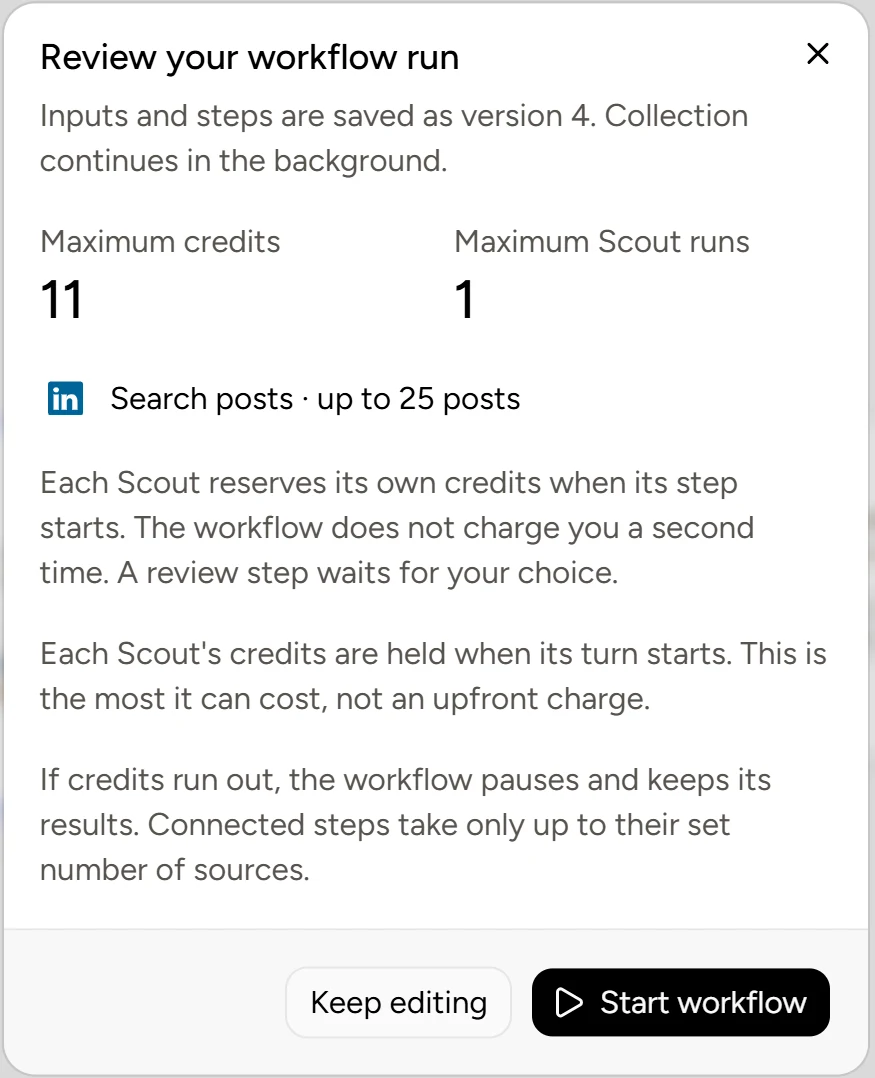
Review run opens Review your workflow run. Nothing starts until you press Start workflow, and Keep editing takes you back.
Maximum credits adds up the most each Scout and each AI step can set aside. It counts an AI step as if every record reaches it.
Our LinkedIn workflow showed 11. That covers Search posts at up to 25 posts, plus an AI step reading all 25.
How it spends credits
Each Scout sets aside its own credits when its step starts, as it would on its own. The workflow adds no charge of its own.
An AI step sets aside credits for the records that reach it, and gives back what it doesn't use.
If your balance runs out partway, the workflow pauses and keeps what it collected. Add credits, then continue the run.
| What the AI step does | DeepSeek V4.1 Flash | GPT-4.1 mini |
|---|---|---|
| Categorise or Extract fields | 1 credit for every 5 records | 3 credits for every 5 records |
| Write a report | 2 credits for every 25 records, plus 8 to combine more than 25 | 5 credits for every 25 records, plus 25 to combine more than 25 |
Scouts that take links from an earlier step
A Scout can take its links from an earlier step, such as profile details for the people who commented on a post. It then runs once for each link.
You set how many links it takes, up to 10. Maximum Scout runs counts every run the workflow could start.
Each step passes on up to 2,000 results. The list under the totals shows each Scout's limit.
AI step settings
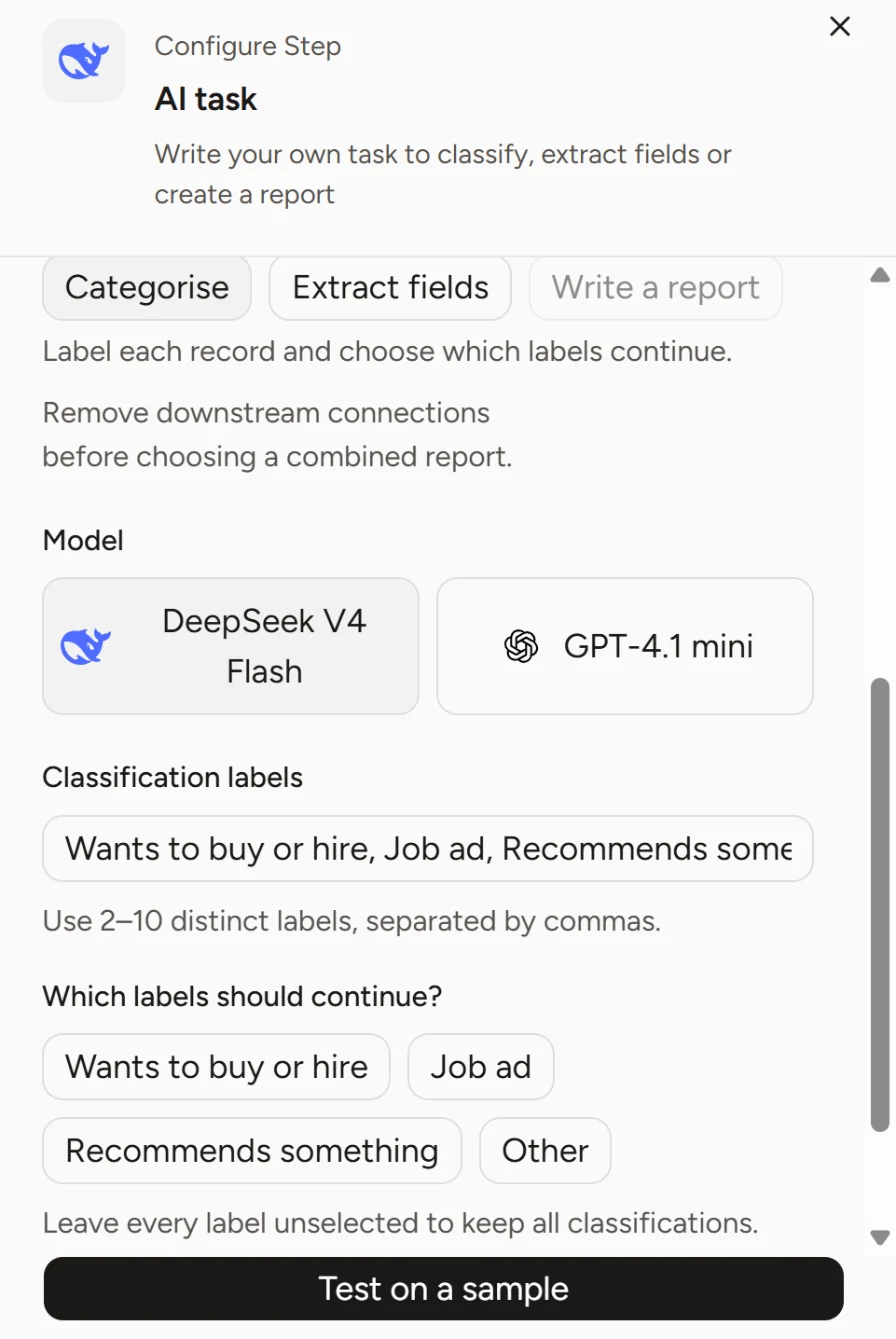
Result decides what the step does. Categorise labels each record, Extract fields adds the fields you describe, and Write a report makes one report with source links.
A report has to be the last step on its path. Remove the steps after it before you choose Write a report.
Model offers DeepSeek V4.1 Flash and GPT-4.1 mini. The table above shows what each sets aside.
For Categorise, type 2 to 10 labels separated by commas. Which labels should continue picks the labels that move on. Pick none to keep every record.
Additional settings holds Fields AI can read and Minimum confidence, from 0 to 1. A record labelled with less confidence than your number doesn't continue.
Test an AI step on a sample
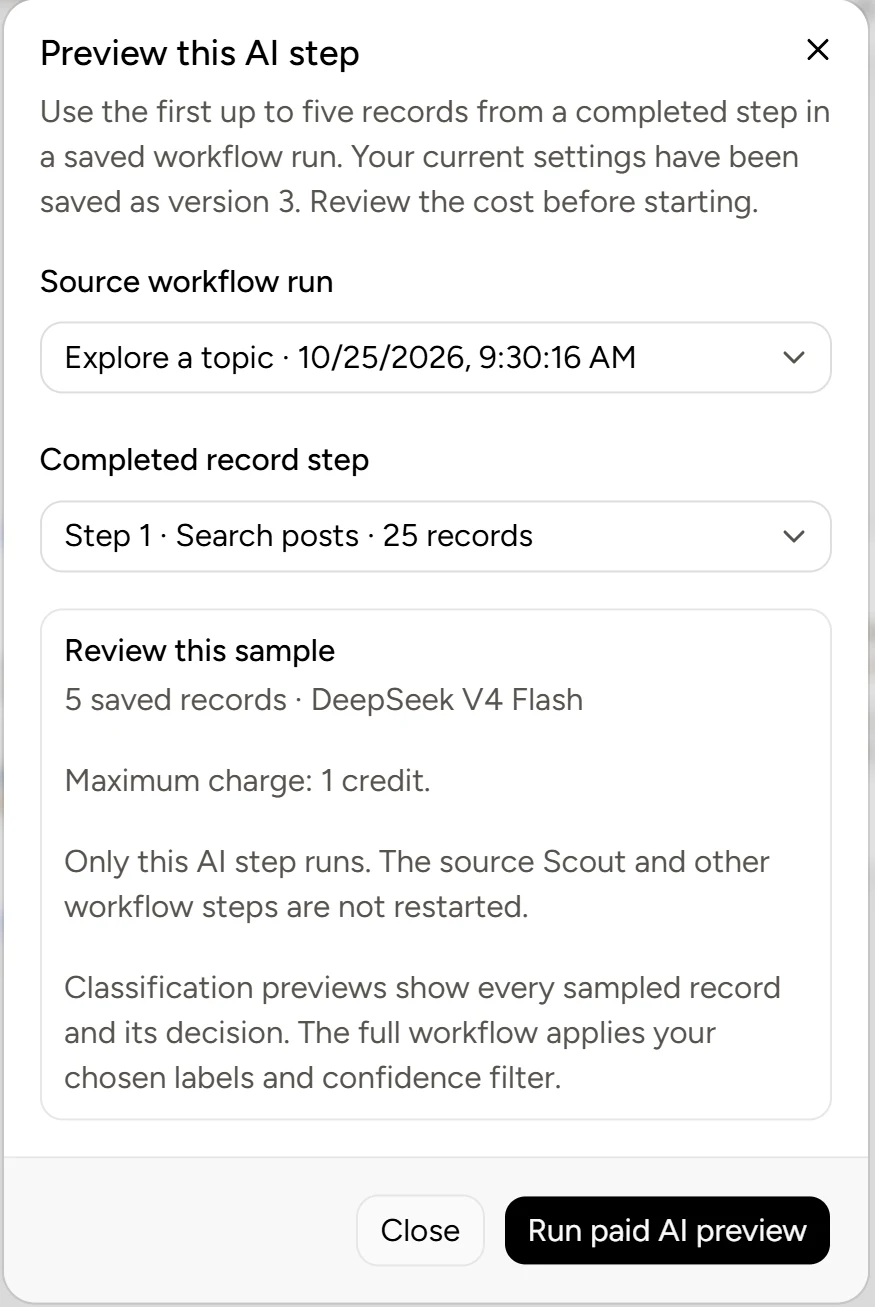
Test on a sample runs only the AI step, on up to 5 records from a run you already have. The Scout doesn't run again.
Pick the run and the step, then press Review sample cost. It shows the most the test can cost and starts nothing.
Run paid AI preview starts the test. A Categorise test shows every sampled record and its label, including the ones your settings would drop.
When a workflow waits for you
A Choose records step pauses the run until someone ticks the records to keep. The person who started the run, the workspace owner or an admin can choose.
Anyone else sees that the run is waiting for one of them.
Stop this run ends a workflow that is running or waiting. On a waiting run, it's in the three-dot menu.
Questions people ask
Does a Scout cost more inside a workflow?
No. A Scout sets aside the same credits in a workflow as it does on its own. AI steps are the only extra cost.
Do I pay while a workflow waits at Choose records?
No. Waiting costs nothing. The steps after it set aside their credits when they start.
Next step
What your run's message means lists the messages a workflow can stop with, and what to do about each one.
Read the help page