
What we tested
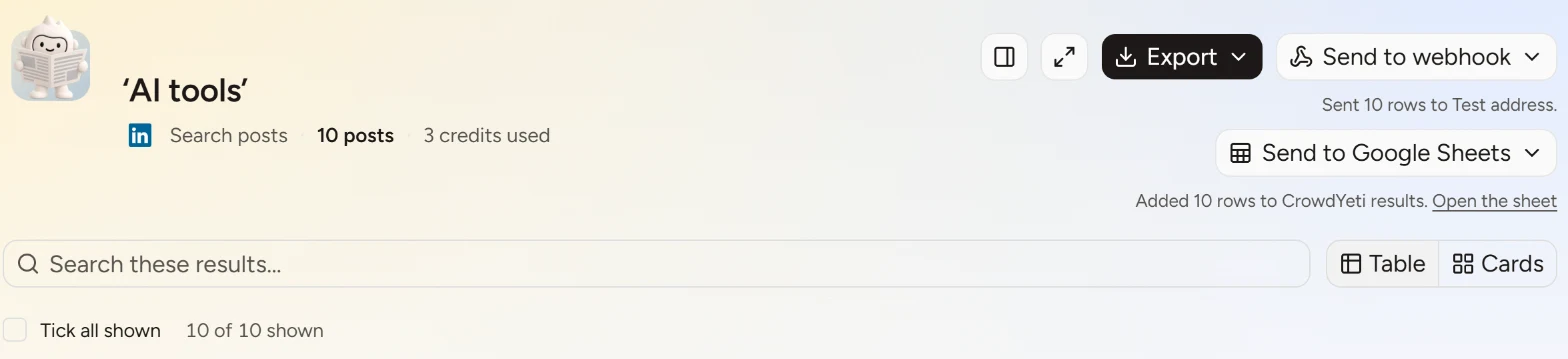
On 11 Nov 2026 we sent one LinkedIn Search posts run for AI tools, with 10 posts, to a new Google sheet and to a test webhook address.
Both showed as sent on the run page. Our balance read 509 credits before and after.
Connect Google
Go to Integrations and open Google Sheets. Press Connect Google and approve the Google screen that follows.
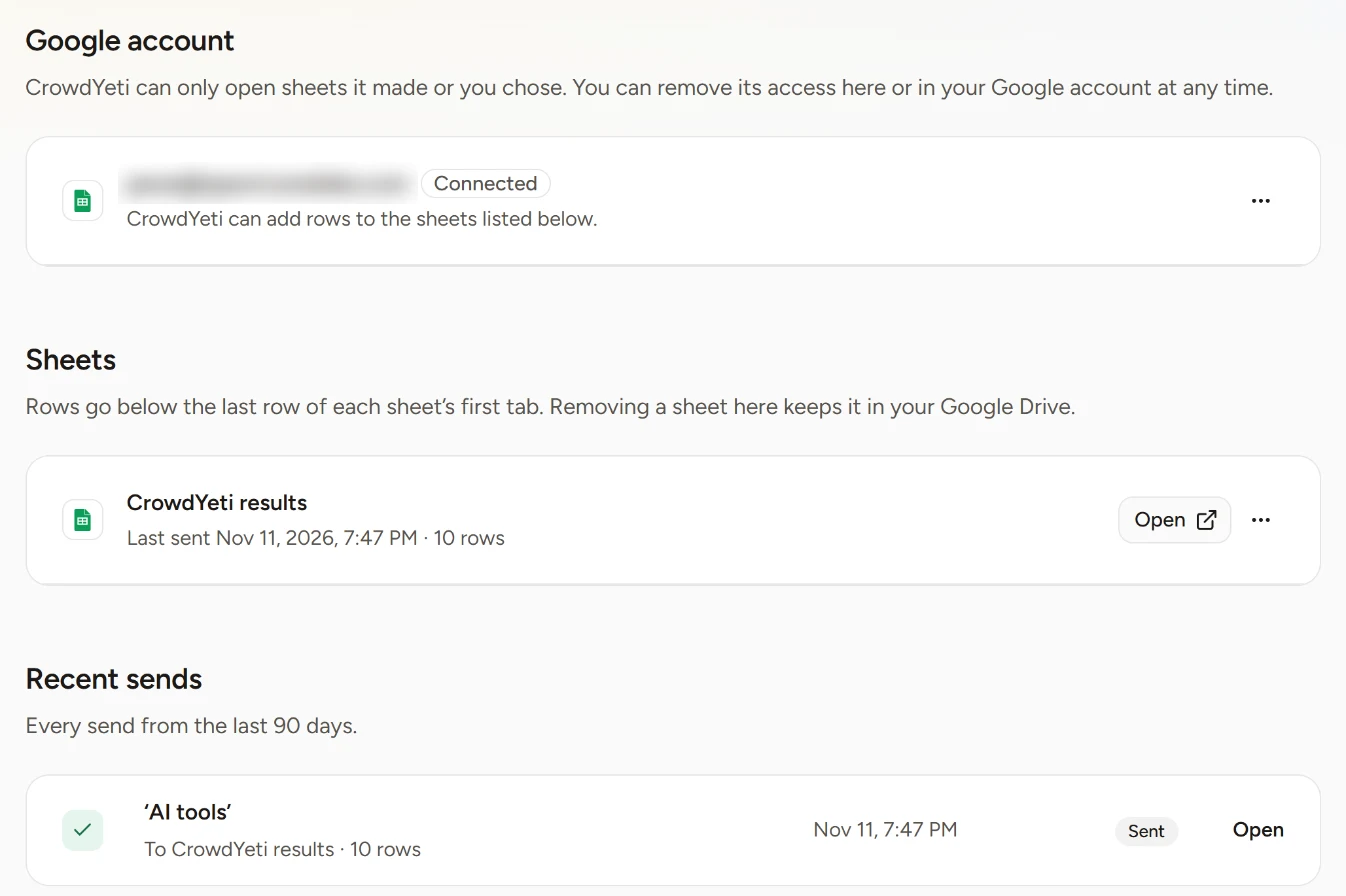
CrowdYeti can only open sheets it made or you chose. You can remove its access from the same page or from your Google account.
Add a sheet
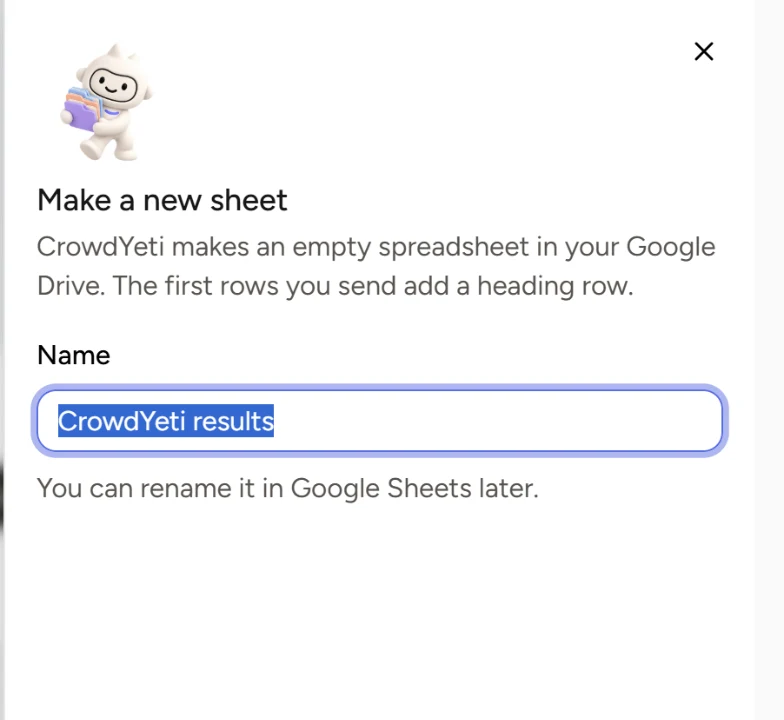
Use Add a sheet. Make a new sheet creates an empty spreadsheet in your Google Drive, called CrowdYeti results unless you rename it.
Choose one of your sheets opens Google's file picker so you can pick a spreadsheet you already have. A workspace can list up to 10 sheets.
What lands in the sheet
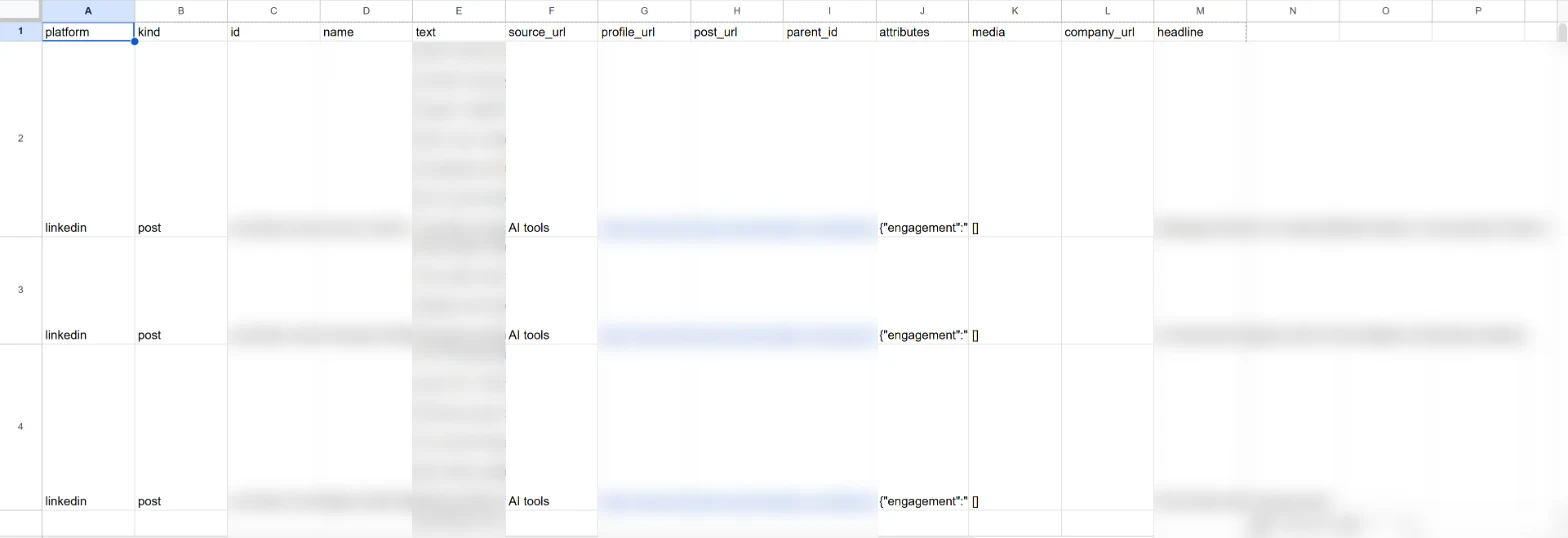
Rows go below the last row of the sheet's first tab. The first send adds a heading row.
Our heading row had platform, kind, id, name, text, source_url, profile_url, post_url, parent_id, attributes, media, company_url and headline.
Post text keeps its line breaks, so rows with long posts come out tall.
Save a webhook address
A webhook sends your rows to an address another tool gives you, such as a Custom webhook step in Make.
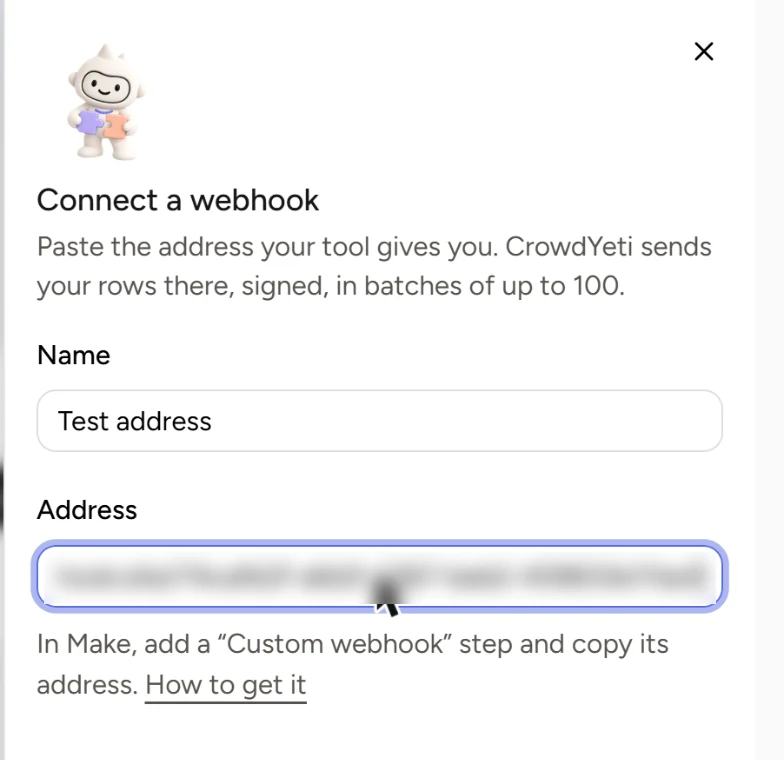
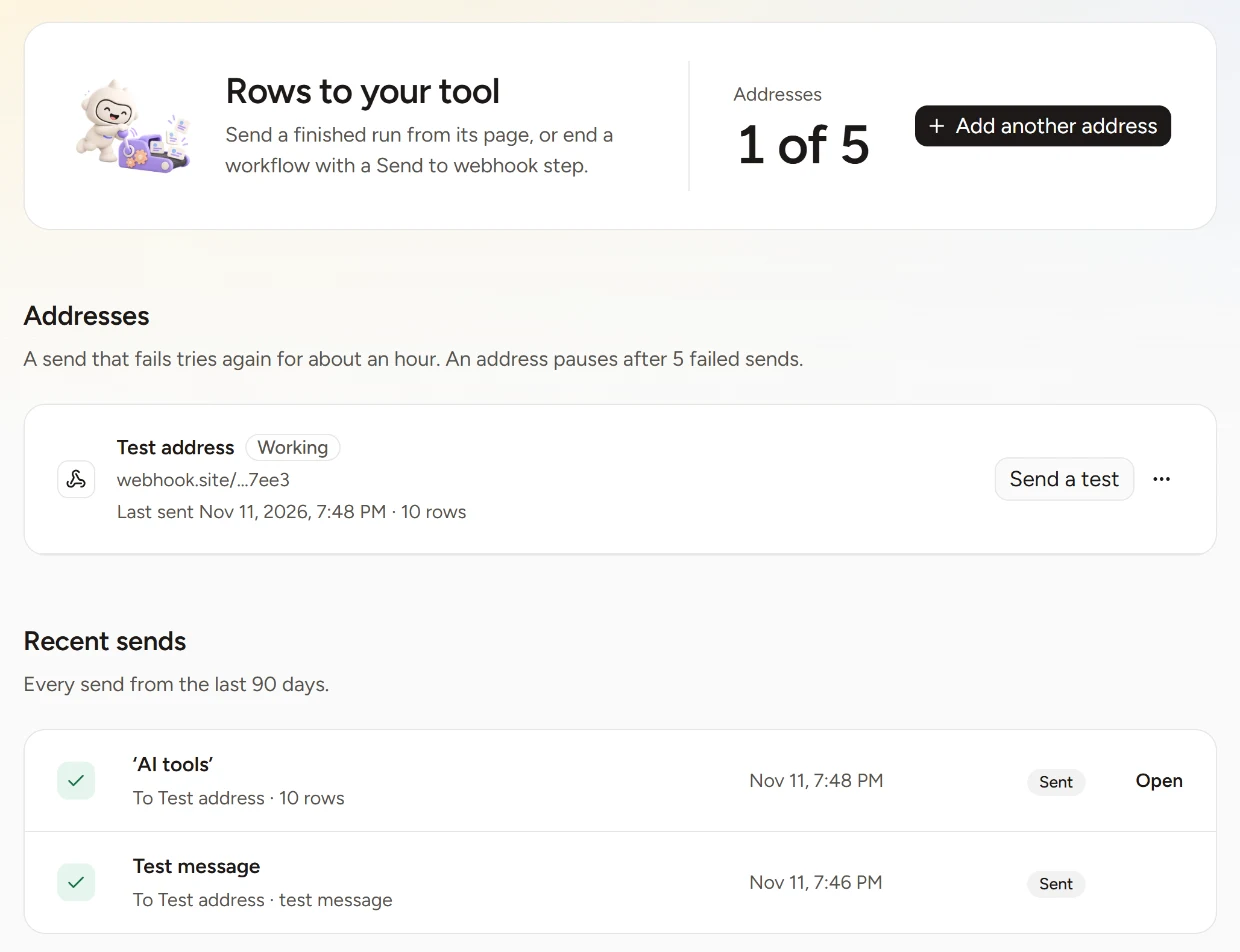
Open Webhooks under Integrations, press Connect, give the address a name and paste it. Save and send a test sends one sample row straight away.
Our test arrived, and the address showed Working. A workspace can save up to 5 addresses.
What a webhook receives
Each message is JSON with the rows, the run's name and a link back to the run. Our 10 posts arrived as one message of about 15 KB.
Big runs arrive in several messages. Each one carries its batch number and says whether it is the last.
Messages are signed. Show signing secret, in the address's menu, gives the secret your tool can use to check a message came from CrowdYeti.
Send from a finished run
Open the run in Data and press Send to Google Sheets or Send to webhook, then pick a sheet or address under All rows to.
Tick some results first, and the menu also offers to send only the ticked ones.
End a workflow with a send step
In the workflow editor, add Send to Google Sheets or Send to webhook as the last step on a path, then choose the sheet or address under Send to.
When the run reaches that step, its records go out with their source links. The Assistant can't add these steps, so add them in the editor.
Check what was sent
The Google Sheets and Webhooks pages each list every send from the last 90 days. Open on a send takes you back to its run.
Questions people ask
Does sending rows use credits?
No. Credits pay for collecting. Our balance stayed at 509 after sending 10 rows to a sheet and to a webhook.
What happens if a webhook send fails?
CrowdYeti tries again for about an hour. After 5 failed sends the address pauses, and Turn on starts it again with a test.
Can I use these on the free trial?
The pages show on the trial, but sending unlocks after your first payment. You can add the workflow steps before then.
Does removing a sheet delete it?
No. Remove from CrowdYeti only stops the sending. The spreadsheet and its rows stay in your Google Drive.
Next step
Find, search and download your results covers Export, ticking results and how long they stay.
Read the help page