

What you get
Some LinkedIn posts are people asking for help, like "Can anyone recommend someone good?" A search for those words finds them, along with many posts that aren't requests.
We searched "can anyone recommend" for the past week and got 25 posts. Most recommended a book, a film or a restaurant, and 2 wanted to hire someone.
An AI step can sort the posts for you. The run then pauses so you can check its picks before you export anything.
Step by step
- Pick the words a buyer would use: Try phrases like "can anyone recommend", "looking for a" or "any recommendations for". The results contain your words, sometimes in a different order or spread across the post.
- Set the date range and number: Open the Explore a topic template. In the Search posts step, type your phrase, set Published to Past week or Past month, and choose how many posts.
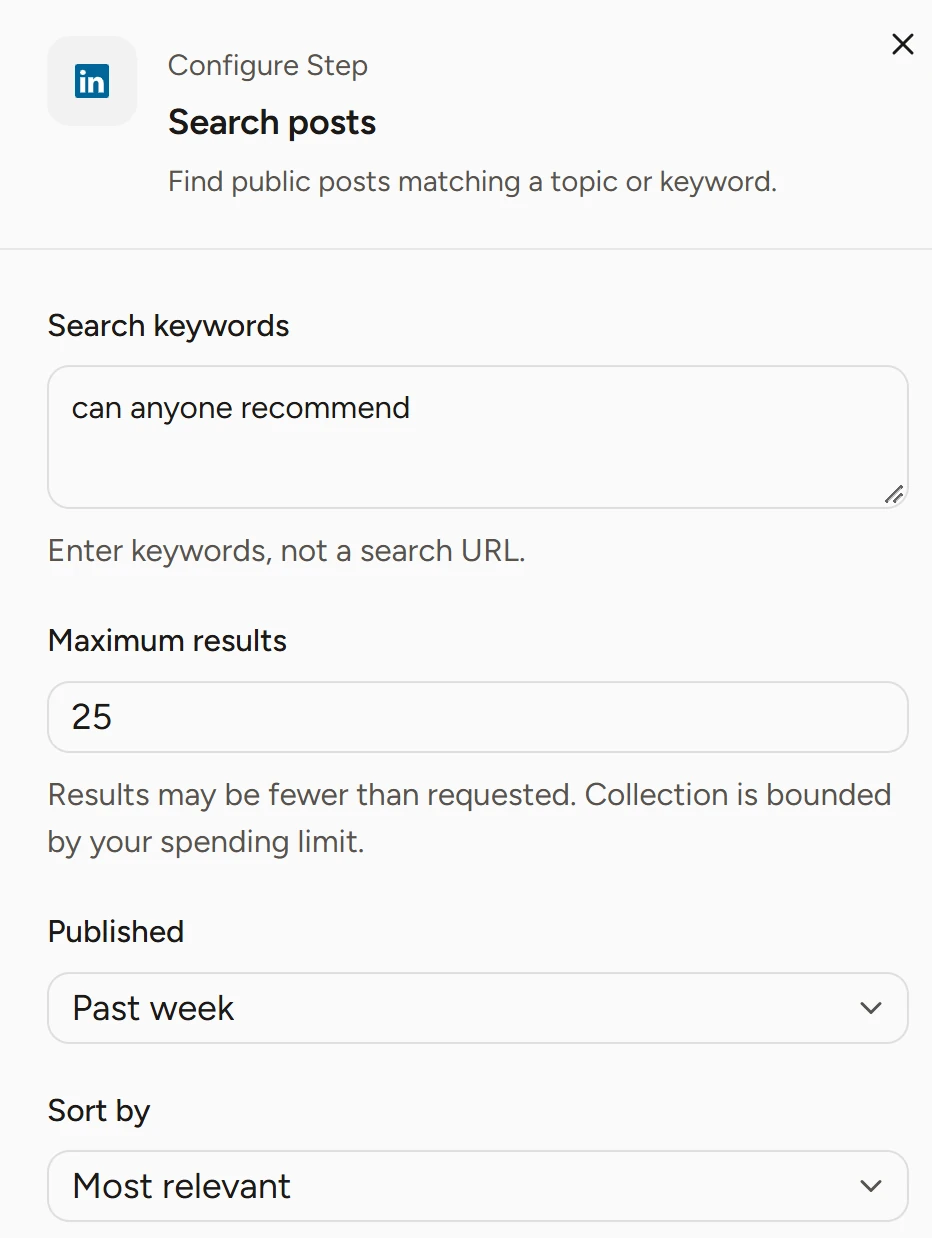
We searched "can anyone recommend" and asked for 25 posts from the past week. Tap the picture to open it full size. - Swap the filter for an AI step: Delete the Filter records step. Click + after Search posts, choose AI task, then drag from its right dot to Choose records.
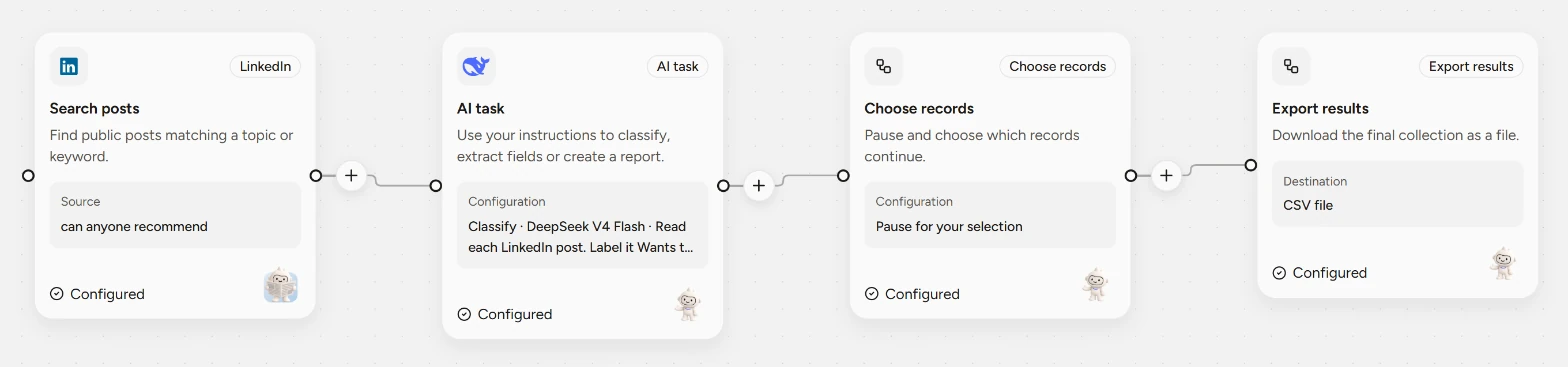
After the swap, the steps are Search posts, AI task, Choose records and Export results. Tap the picture to open it full size. - Write the labels and the rules: Choose Categorise. Use labels like Wants to buy or hire, Job ad, Recommends something and Other. Then say in plain words what each one means.
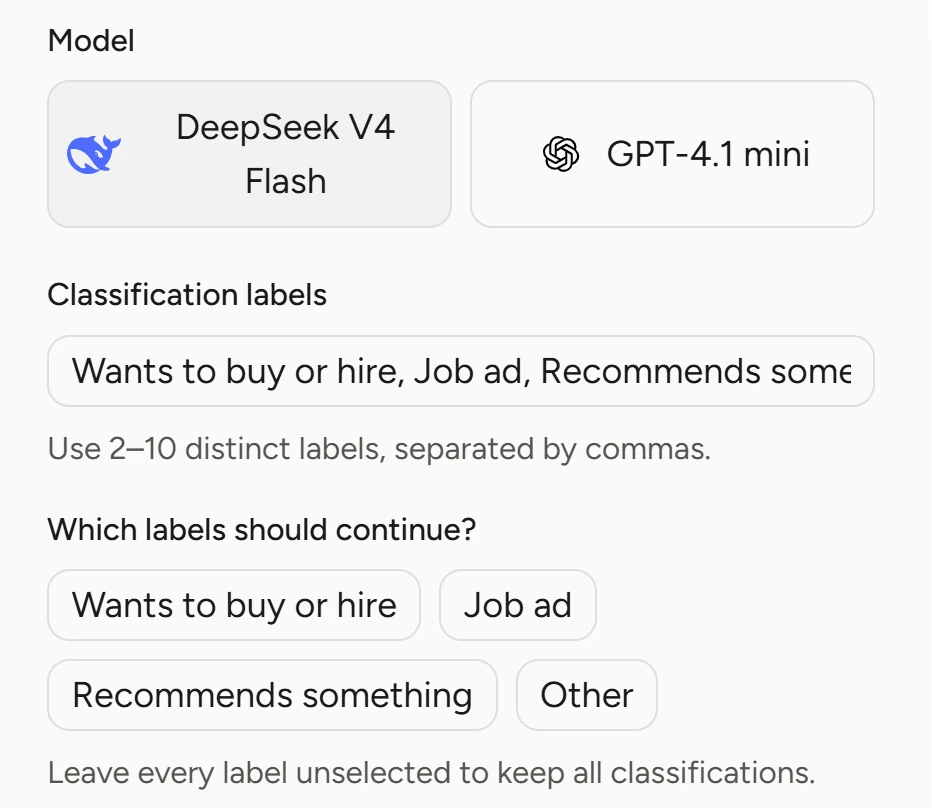
The labels from our second try. Leave them all unpicked to keep every post. Tap the picture to open it full size. - Run it and check the picks: Press Review run and Start workflow. When the run pauses, open and read each post labelled Wants to buy or hire before you tick it.
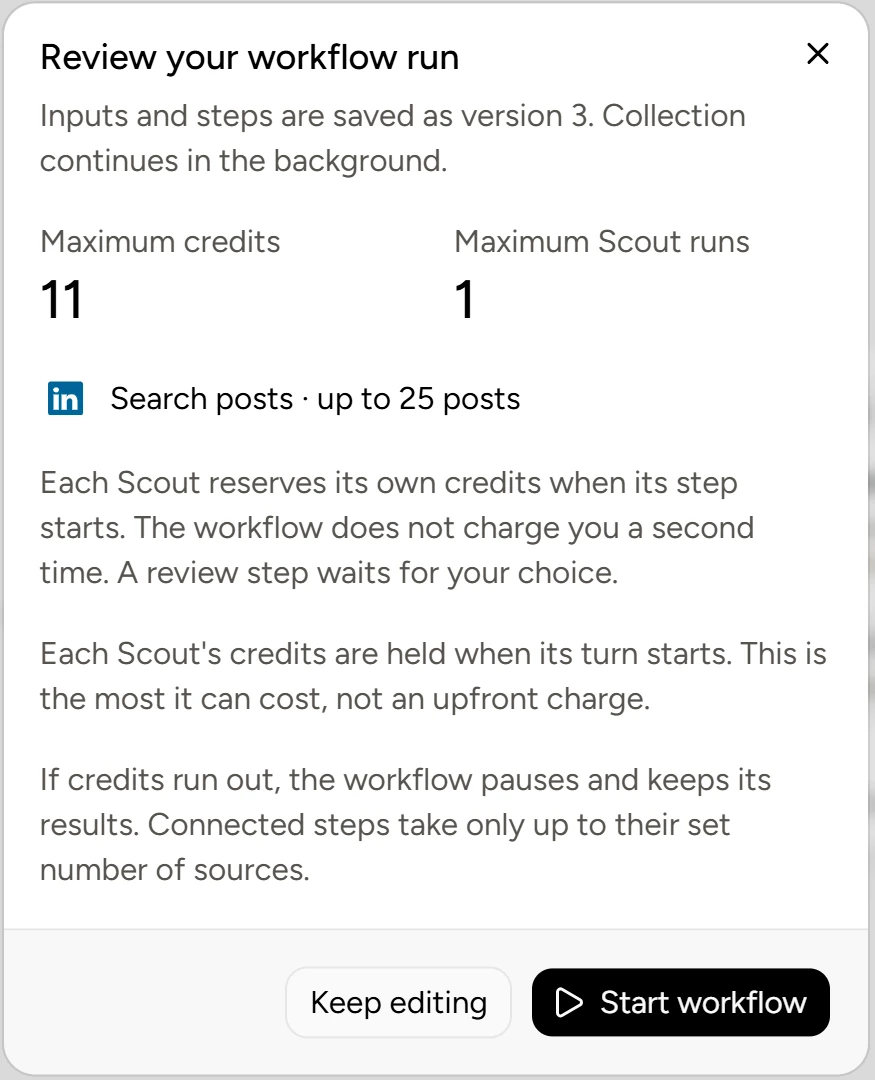
Review run shows the most it can cost before anything starts. Ours showed 11 credits and used 11. Tap the picture to open it full size. - Export the ones you keep: Press Continue and download the CSV or JSON. Each row keeps the post link, so you can find it again on LinkedIn.
What a real run returned
| First labels | Second labels | |
|---|---|---|
| Posts labelled as requests | 5 | 2 |
| Real requests among them | 2 | 2 |
| Job ads labelled as requests | 1 | 0 |
| Book requests labelled as requests | 2 | 0 |
| Credits for search and AI | 11 | 11 |
Good to know
- LinkedIn's results change, so the same search next week will find different posts.
- With DeepSeek V4 Flash, the AI step sets aside 1 credit for every 5 posts. Ours used 5 credits for the AI and 6 for the search.
- Every wrong pick in our first try had a confidence score of 0.95 or more. A high score tells you little about whether a label is right.
- Minimum confidence starts at 0 on a new AI task, so every labelled post carries on. Raise it only once you trust the labels.
- To see who answered a request, run Post commenters on the posts you kept.